PDF to PowerPoint
Turn every PDF page into a PowerPoint slide image, ready to present. All processing happens locally on your device.
Choose files
or drag and drop them here
What PDF to PowerPoint produces: one picture of each page per slide
This tool turns each page of a PDF into one slide of a PowerPoint (.pptx) file. It renders every page in your browser with pdf.js at twice its normal size, saves it as a JPEG image at 90 percent quality, and places that image on its own slide using the pptxgenjs library. The slide shape comes from your first page: the long edge is always 13.33 inches, PowerPoint's standard widescreen width, and the short edge follows the page's proportions. An A4 portrait PDF therefore becomes a portrait presentation of 9.42 by 13.33 inches. The file keeps your PDF's name with a .pptx ending and downloads automatically.
It is handy when you need PDF pages inside a slideshow without rebuilding them. A few examples: showing pages of a report in a meeting, putting a worksheet or scanned notice on screen in a classroom, or handing a .pptx to someone whose system only accepts PowerPoint files. Once the pages are slides, you can add your own text boxes, arrows, highlights and speaker notes on top of them in PowerPoint or another presentation app. You can also delete, duplicate or reorder the slides like any others.
What you get are pictures, not editable slides. We opened the file made from our four-page sample in a PowerPoint library: every slide held exactly one picture and no text boxes, so there is nothing to click into and edit, and no text to search or copy. The file also grows. Our 51 KB PDF produced a 321,631-byte presentation, with each A4 page stored as a 1190 by 1684 pixel image. If you need to change the wording or layout of the slides themselves, this is not the right tool.
How to convert a PDF to PowerPoint, step by step
Load a PDF, convert it, and open the .pptx in your presentation app. Every page is processed on your own device.
- 1
Open the PDF to PowerPoint tool
Go to the PDF to PowerPoint page. The line under the heading says it turns every page into a slide image. Click Choose Files or drag a PDF onto the upload box.
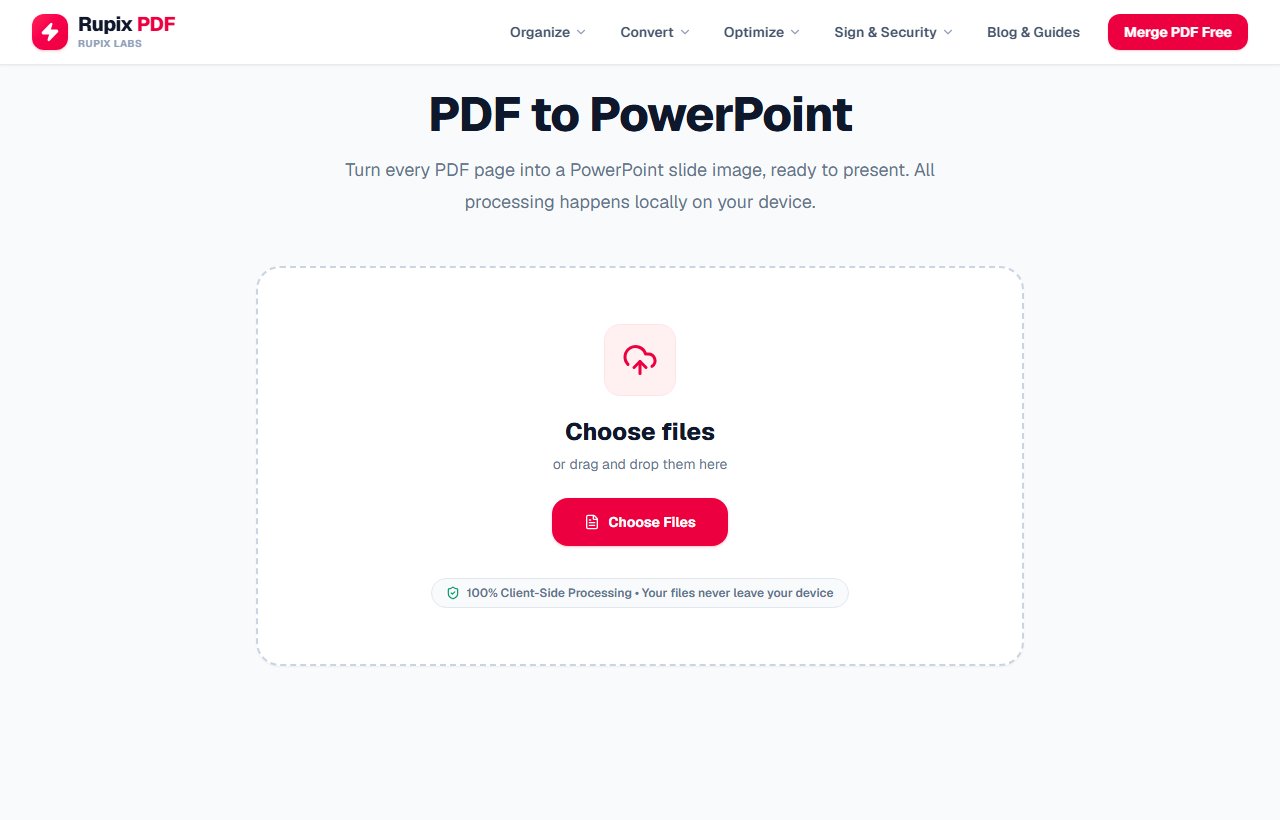
The PDF to PowerPoint page with its empty upload box and Choose Files button. - 2
Confirm the selected file
The PDF appears under Selected File with its name and size. The tool converts one PDF at a time and always includes every page; to leave pages out, remove them first with Delete Pages or Split PDF.
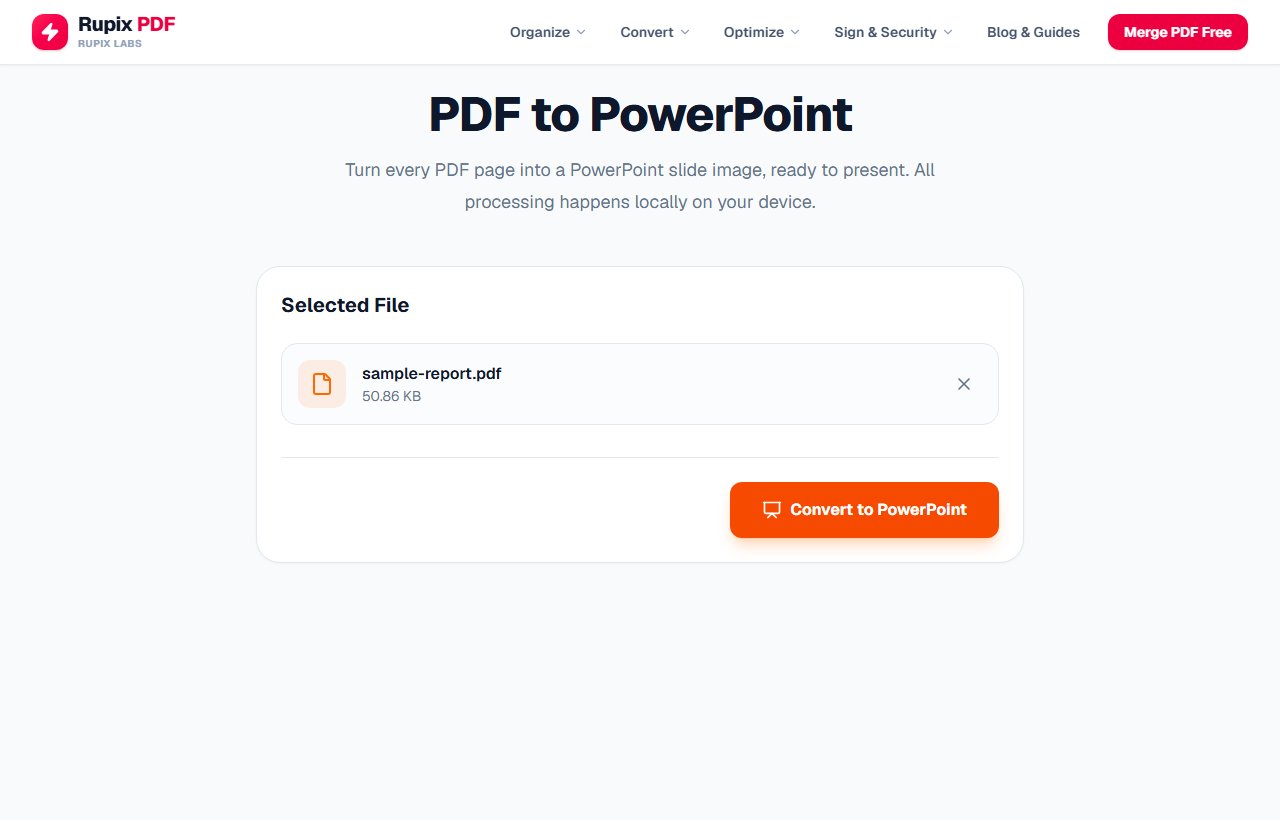
The Selected File card showing sample-report.pdf (50.86 KB) and the orange Convert to PowerPoint button. - 3
Click Convert to PowerPoint
Press Convert to PowerPoint. A bar labelled Converting pages to slides... shows the percentage as each page is rendered. Short files finish almost instantly: our four-page sample took about a quarter of a second on a desktop computer. Long documents, especially on phones, take noticeably longer.
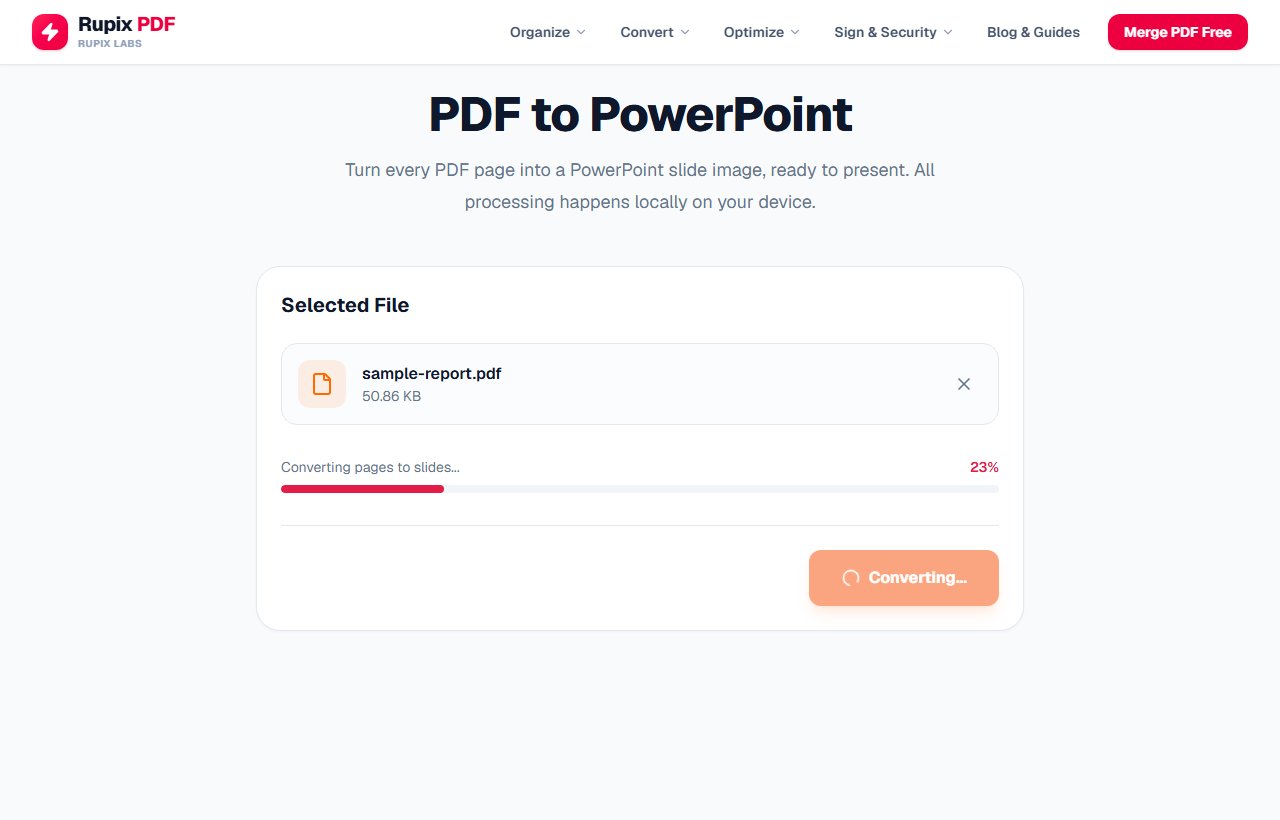
The Converting pages to slides... progress bar at 23 percent, with the button showing Converting... - 4
Save the presentation
When the last page is done, the .pptx downloads automatically and a PowerPoint Created! screen appears. It names the file, for example sample-report.pptx. Use Download File if you need another copy, or Process Another File to convert something else.
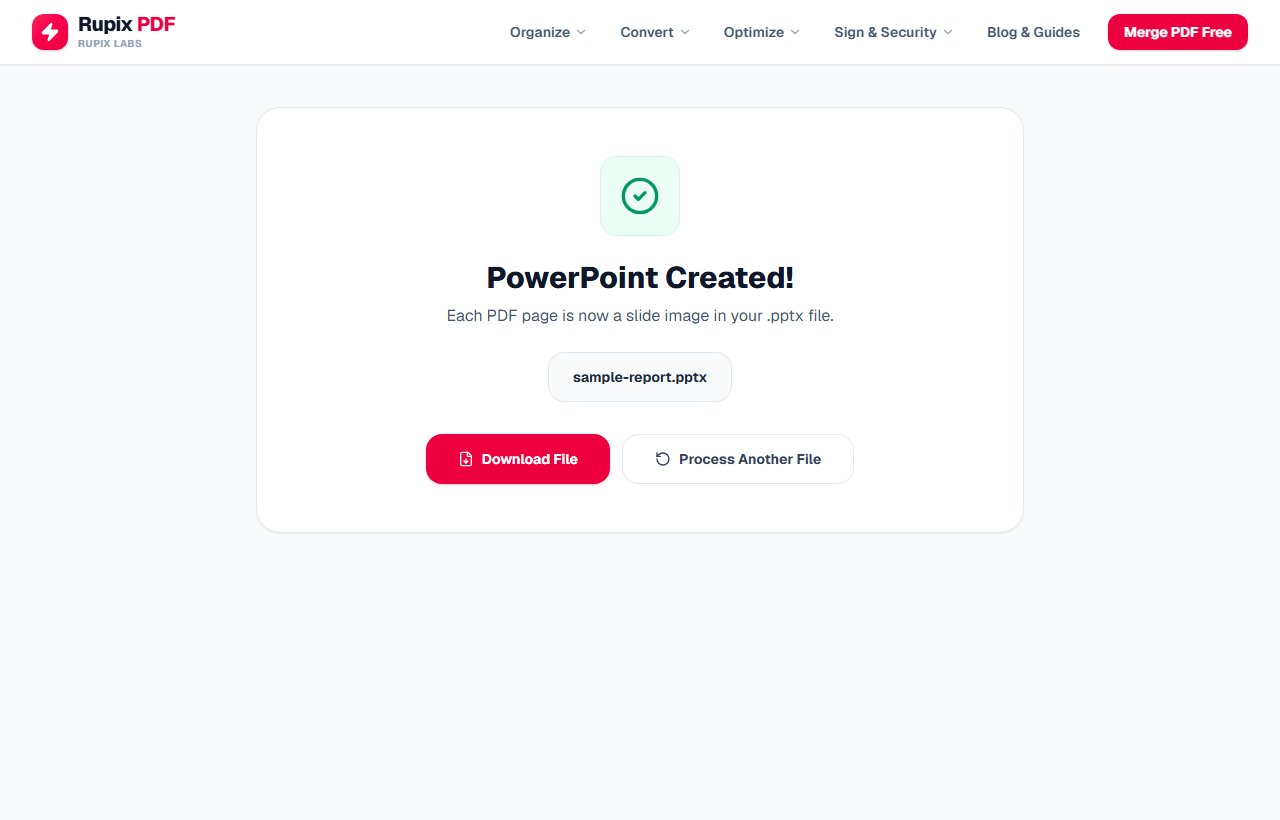
The PowerPoint Created! screen showing sample-report.pptx with Download File and Process Another File buttons. - 5
Open it and build on the slides
Open the file in PowerPoint or another presentation app. Each slide is one image filling the slide, so you can resize or crop it, add text boxes or arrows on top, and type speaker notes. The words on the page image itself cannot be edited.
- 6
Check pages with a different shape
Every slide uses the shape of your first page. If later pages have a different orientation, they are shrunk to fit and centred. In our test, a landscape page after a portrait first page sat in the middle of a tall slide with empty space above and below it.
100% Client-Side Privacy Guarantee
Unlike other online PDF converters, Rupix operates on a zero-upload architecture. All PDF processing occurs locally in your browser memory using WebAssembly. No document bytes are ever uploaded to any server.
Engine Specifications
Supported Input
Standard PDF (.pdf)
Engine
PDF.js (page rendering) + pptxgenjs (.pptx packaging)
Output
Image-based PPTX, one slide per page
Privacy
100% Local In-Browser Execution
File Limit
Up to 100 MB per file
Why use Rupix PDF to PowerPoint?
Converts every PDF page into its own PowerPoint slide, as an image
Auto-fits a widescreen or portrait slide layout to your PDF's page shape
100% private — the file is rendered and packaged entirely in your browser
No watermarks, files up to 100 MB each
Completely free with no account required
Frequently Asked Questions
Will the slide text be editable in PowerPoint?
No. Each slide is a picture of the original PDF page, not editable or selectable text — you can't click into a slide and change a word. If you need editable text and layout, open the PDF in desktop PowerPoint or another PDF-to-editable-slides tool instead.
Is the text at least searchable or selectable inside the .pptx?
No. Since every slide is an image, there's no text layer at all — you can't search, select, or copy text from the generated presentation.
Why is the .pptx file larger than the original PDF?
Each slide embeds a full-page image, which is typically heavier than the PDF's original text and vector content. For a large PDF, expect a noticeably bigger .pptx file.
Is my presentation uploaded anywhere?
No. The PDF is rendered to images and packaged into a .pptx entirely inside your browser — nothing is sent to a server.
Why use this instead of just viewing the PDF?
It's useful when you specifically need a .pptx file to present, embed in a deck, or hand to someone who expects PowerPoint — for example dropping PDF pages into a slide show without re-authoring them.
What slide size will my presentation use?
It is based on the first page of your PDF. The longer side is always 13.33 inches, and the shorter side matches the page's proportions. A landscape PDF gives landscape slides 13.33 inches wide, while an A4 portrait PDF gives portrait slides of 9.42 by 13.33 inches. You can change the slide size later in your presentation app, although the page images will not reflow.
What happens if my PDF mixes portrait and landscape pages?
All slides share one size, set by page one, and each page is fitted inside it without stretching. We converted a PDF with a portrait first page and a landscape second page: the landscape page was placed 9.42 inches wide and 6.66 inches tall in the centre of a 13.33-inch-tall slide, leaving blank bands above and below.
Can I convert a password-protected PDF?
Yes, if you know the password. When you press Convert to PowerPoint on a locked file, the tool says the PDF is password-protected and shows a password box; type the password and press the button again. A wrong password gets the message That password didn't open the file, so you can retry. In our test, the password-protected copy of our four-page sample converted to the same 4-slide, 321,631-byte presentation as the unprotected original. The password is only used inside your browser to open the file.
How sharp are the slide images?
Pages are drawn at twice their normal size, so an A4 page becomes an image of 1190 by 1684 pixels saved at 90 percent JPEG quality. That is clear on a projector or laptop screen. Very small print or fine lines can look slightly soft if you zoom far into a slide, because it is a photo of the page rather than live text.