PowerPoint to PDF
Convert PowerPoint (.pptx) presentations to PDF documents. The text on each slide is copied onto simple PDF pages (images and layout are not kept).
Choose files
or drag and drop them here
What this PowerPoint to PDF converter keeps: the words, not the design
A .pptx file is a zip archive of XML files, one per slide. This tool opens that archive in your browser, reads the slides in the order your presentation lists them, and writes the text of each one onto a landscape A4 page in the new PDF, one paragraph after another. Each slide starts a new page with a small grey Slide 1, Slide 2 label in the corner, and the text follows below in one plain grey font at a single size. The PDF is named after your presentation, so team-update.pptx becomes team-update.pdf, and it downloads automatically. Our three-slide, 55 KB demo deck turned into a PDF of just 4,537 bytes.
That makes it useful when the words are what matter. Examples are sending the text of a deck to someone for review or proofreading, printing a plain handout of what each slide says, keeping a lightweight searchable record of a presentation, or passing slide text on to another tool. Because the file is read locally, it is also an option when you would rather not upload an internal deck to a conversion website. It is the wrong choice when the PDF has to look like your slides. For that, use Export or Save as PDF in PowerPoint, Download as PDF in Google Slides, or the export option in the free LibreOffice Impress.
We tested it with a deck built to find its limits. Pictures, backgrounds, colours, bold text, font sizes and positions are all dropped: our demo deck's pink backgrounds and large bold titles came out as plain grey text. A sentence with one bold number in the middle stayed on one line, because the pieces of each paragraph are joined back together. Long paragraphs wrap to the page width, and a slide with more text than fits carries on to an extra page labelled Slide 3 (continued): our slide with 25 bullet lines filled one page with the first 17 and put the other 8 on the next. Hindi text came out as garbled symbols, because the built-in font covers only basic Latin characters.
How to convert PowerPoint to PDF, step by step
Load a .pptx file, convert it, and check the text-only result. The presentation is processed on your device and never uploaded.
- 1
Open the PowerPoint to PDF tool
Go to the PowerPoint to PDF page. The upload box heading says Choose PDF files, but on this page the file picker is set to .pptx presentations. Older .ppt files are not supported, so re-save those as .pptx in PowerPoint first.
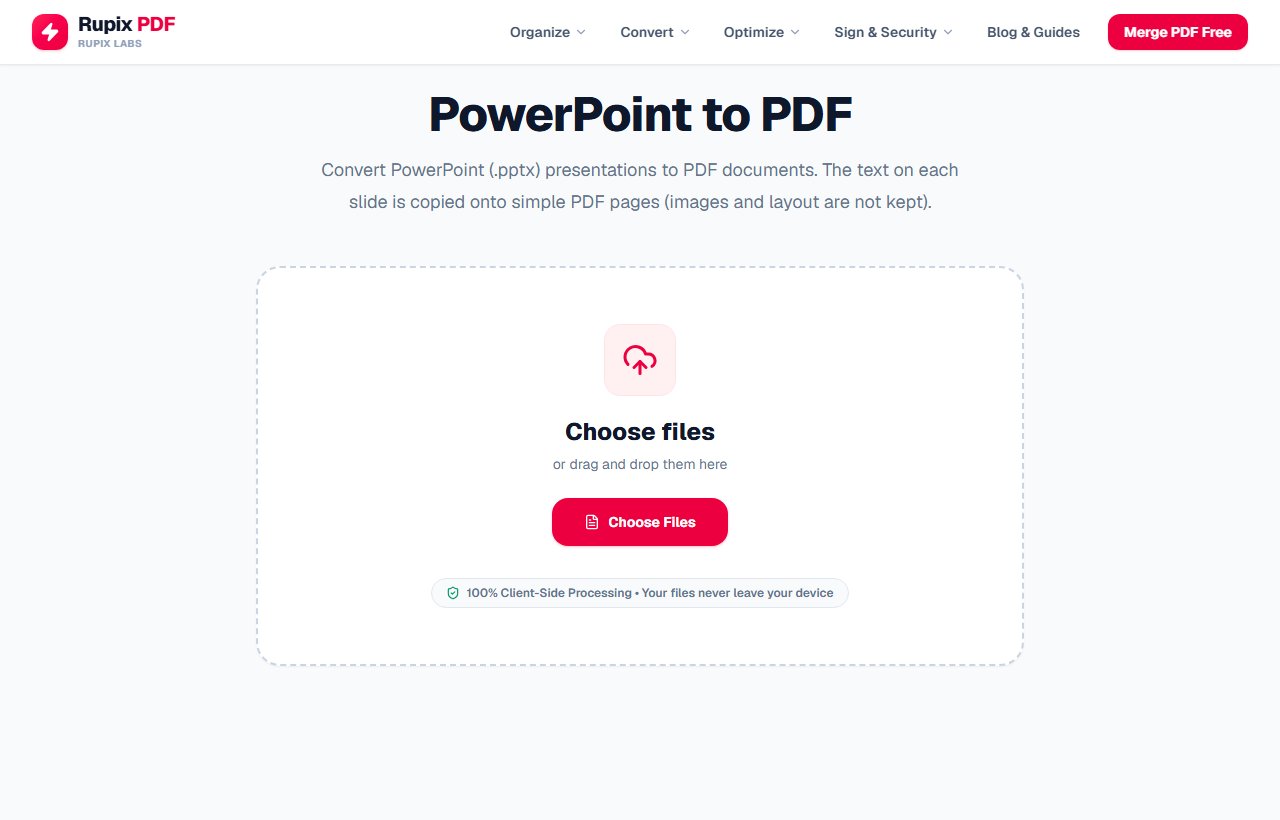
The PowerPoint to PDF page with its upload box and Choose Files button. - 2
Select your presentation
Click Choose Files or drag the .pptx file onto the box. It appears as a card with its name and size, above two notes titled Slide Mapping and Text Preservation. The X on the card removes the file if you picked the wrong one.
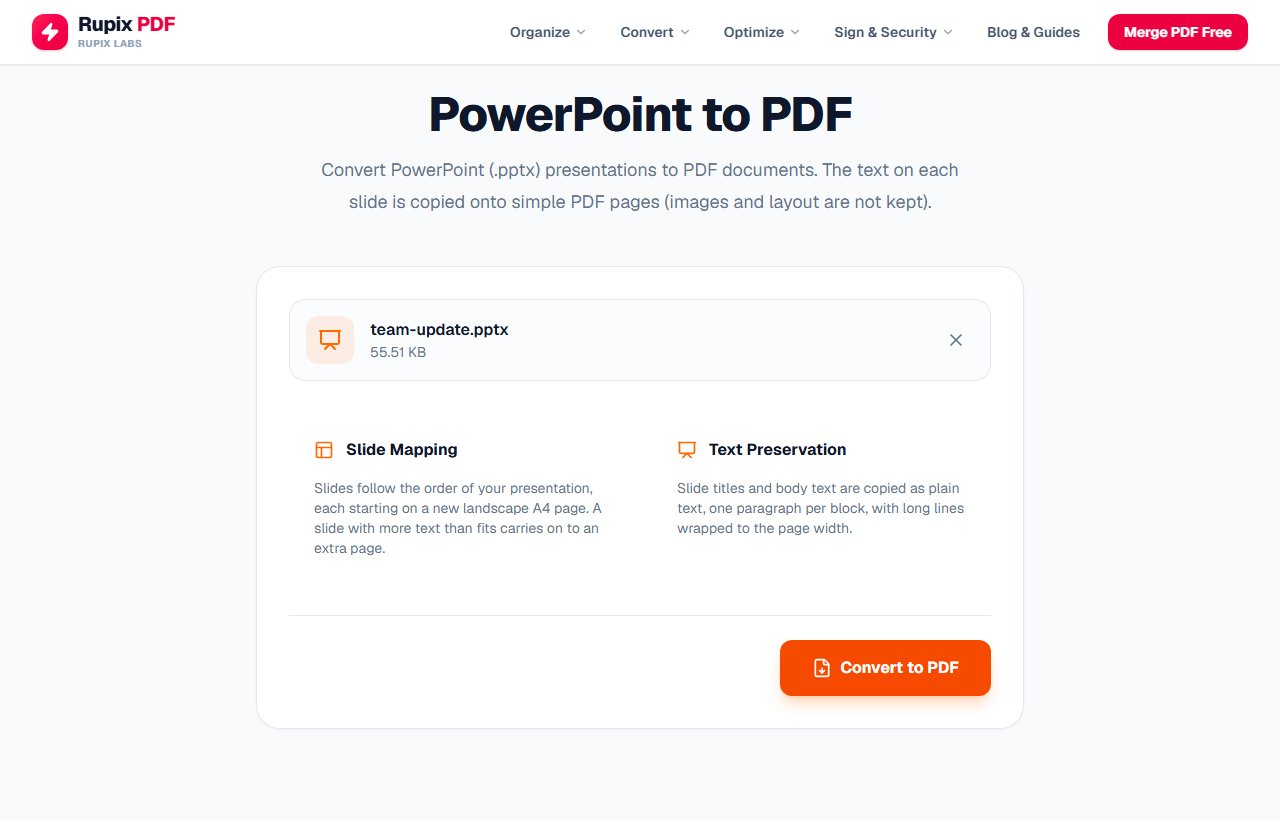
The team-update.pptx card (55.51 KB) with the Slide Mapping and Text Preservation notes and the Convert to PDF button. - 3
Click Convert to PDF
Press the orange Convert to PDF button. It reads Converting... for a moment, then the PDF downloads automatically and a Presentation Converted! screen appears. Use Download File to save it again, or Process Another File to start over.
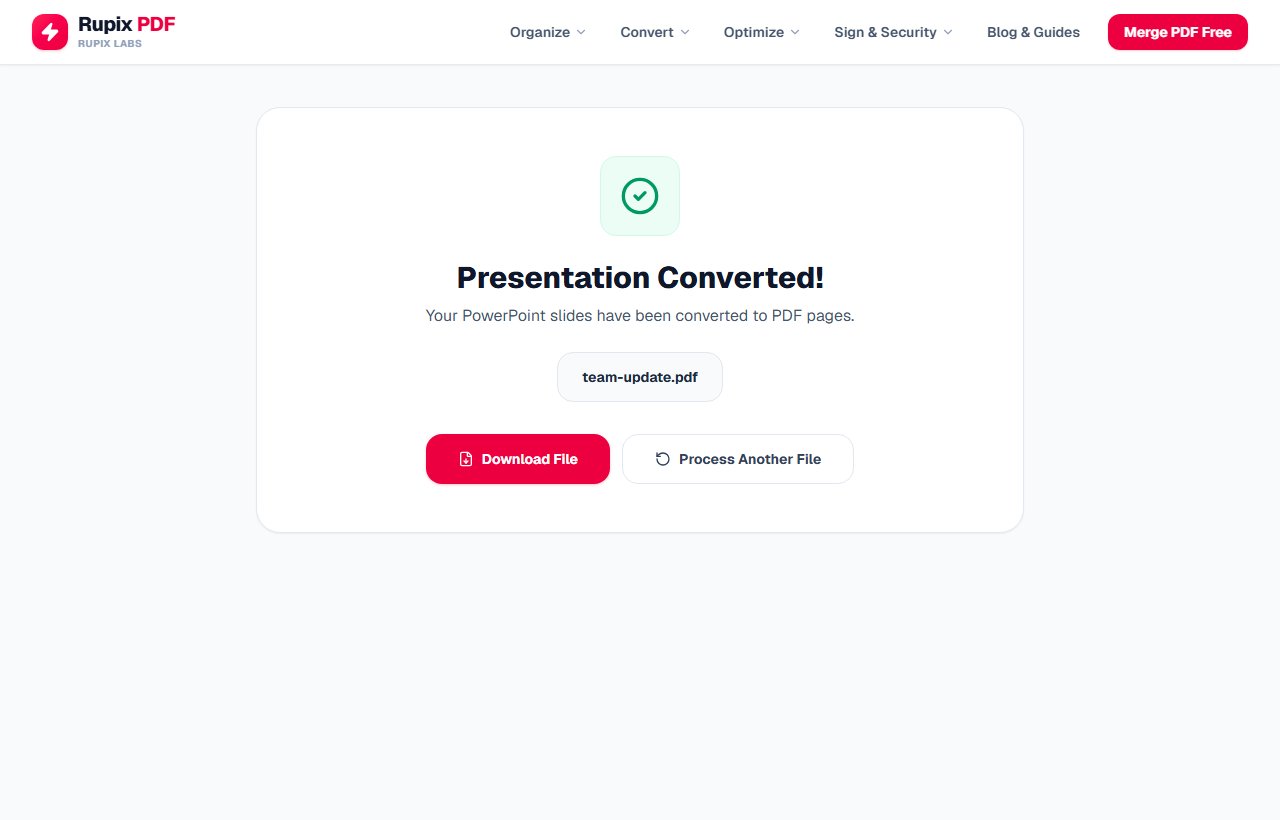
The Presentation Converted! screen showing team-update.pdf with Download File and Process Another File buttons. - 4
Check the result page by page
Open the PDF. Each slide starts on a landscape page with a Slide number label and the slide's text listed paragraph by paragraph in the same plain style. Check that nothing important relied on a picture, chart or layout, because none of that is carried over.
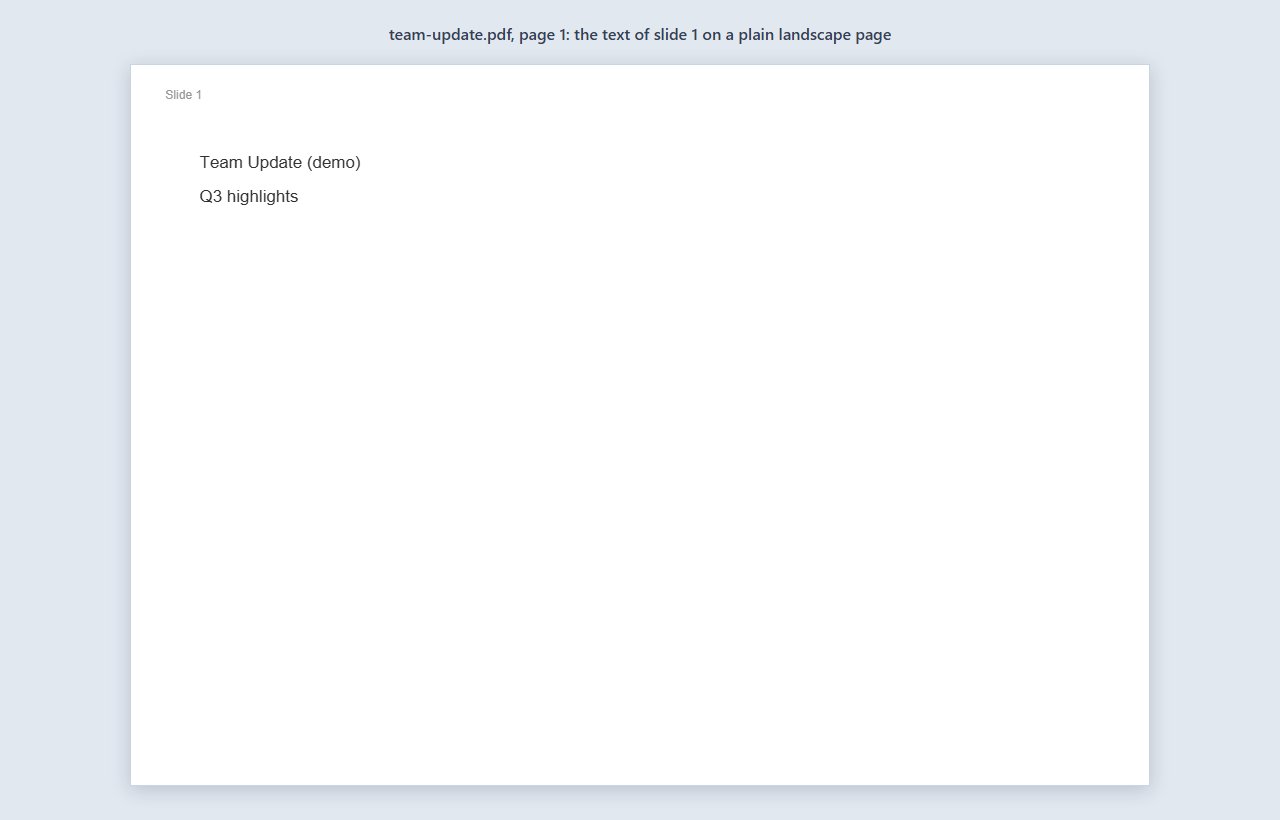
Page 1 of the converted team-update.pdf: a Slide 1 label and the lines Team Update (demo) and Q3 highlights in plain grey text on a white page. - 5
Expect extra pages for text-heavy slides
About 17 single-line paragraphs fit on a page. When a slide has more, its text continues on the next page, which is labelled with the same slide number and (continued), so the PDF can have more pages than the deck has slides. Slides appear in the same order as in PowerPoint's slide list.
100% Client-Side Privacy Guarantee
Unlike other online PDF converters, Rupix operates on a zero-upload architecture. All PDF processing occurs locally in your browser memory using WebAssembly. No document bytes are ever uploaded to any server.
Engine Specifications
Supported Input
PowerPoint (.pptx) only
Engine
JSZip (OOXML parsing) + jsPDF
Output
Text-only PDF, landscape A4 pages (extra pages for long slides)
Privacy
100% Local In-Browser Execution
File Limit
Up to 100 MB per file
Why use Rupix PowerPoint to PDF?
Extracts text from each PowerPoint slide and writes it onto landscape A4 PDF pages
Text-only conversion — backgrounds, images, colors, fonts, and exact positioning are dropped
Long slides continue on extra pages labeled "Slide N (continued)" — NOT one slide per page
Built-in font covers basic Latin only; Hindi/Devanagari comes out as garbled symbols
Table cell text becomes separate lines; table structure is lost
Speaker notes and charts are not included
100% client-side via JSZip (OOXML parsing) + jsPDF, no uploads
Free, no sign-up, files up to 100 MB
Frequently Asked Questions
Does this preserve slide design, images, and layout?
No — this is a basic, text-only conversion. It extracts the text from each slide and lays it out on a plain PDF page; slide backgrounds, images, colors, and exact positioning are not preserved. For a fully faithful visual conversion, use desktop PowerPoint's own 'Export to PDF'.
Why is some text missing from a slide in the PDF?
It shouldn't be. Text that doesn't fit on one page continues on an extra page marked Slide N (continued), and long lines wrap to the page width. In our test, a slide with 25 short bullet lines came out as two pages, 17 lines on the first and 8 on the second, with nothing lost. Text inside pictures, charts and speaker notes is never read, so that part of a slide will be missing.
Does it work with Hindi or other non-English text?
Not reliably. The PDF is written with a standard built-in font that covers basic Latin characters only. A slide with a Devanagari sentence came out as a row of unrelated symbols in our test. For presentations in Hindi, Gujarati, Tamil or other scripts, export to PDF from PowerPoint, Google Slides or LibreOffice instead.
Will the slides be in the same order as in PowerPoint?
Yes. The tool reads the presentation's own slide list rather than the order of the files stored inside the .pptx, which can differ after slides have been moved around. We built a test deck whose slide list put its last-created slide first, and the PDF put that slide first too. If a file has no readable slide list, the tool falls back to the stored file order.
Are speaker notes, tables and charts included?
Only text stored on the slide itself is read. Text typed into table cells is picked up, but each cell's text becomes its own line, so the table structure is lost. Speaker notes and charts are stored in separate parts of the .pptx file, so neither appears in the PDF.