Organize PDF
Drag and drop pages to reorder them, remove the ones you don't need, then save a new PDF. Everything happens securely in your browser.
Choose files
or drag and drop them here
What organizing a PDF changes — and when reordering pages is the fix
Organize PDF shows every page of a document as a numbered thumbnail and lets you rearrange them before saving a new copy. You drag a page to a new spot, or use the small arrow buttons that appear when you hover over it, and the numbers update to show the current order. The same view has a trash button on each page for removing ones you do not need. When you press Save & Download, the pages are written into a fresh PDF in exactly the order on screen, named Rupix_Organized_ followed by your original file name.
Pages end up in the wrong order more often than people expect. A stack of paper goes through the scanner with one sheet swapped, a report gets assembled from several exports and the chart page lands after the photos, or a merged file puts an appendix in the middle. Organizing is also the quickest way to drop a stray blank page or an extra copy while you are fixing the order, so you only save once. If all you need is to remove pages without moving anything, Delete Pages does that job; if you need separate files, use Split PDF.
Nothing leaves your device. The thumbnails are drawn in your browser with PDF.js, and the new document is built with pdf-lib by copying the pages you kept, in your chosen order, into an empty PDF. Because pages are copied rather than re-rendered, text stays selectable and images keep their resolution. Copying also means a removed page really is gone from the output: when we removed the photo page from our 50.86 KB, 4-page sample report, the saved 3-page file was about 4.7 KB, because the photo no longer travelled with it. One limit to know: removing a page has no undo button, so if you trash the wrong one, press the X in the toolbar and load the file again.
How to reorder PDF pages, step by step
The screenshots follow a real run on a 5-page demo report whose Sales by Region page was out of place and which had a blank page stuck near the end.
- 1
Open the Organize PDF tool
Go to the Organize PDF page in your browser. The upload box reads Choose PDF files, with a Choose Files button and a note that processing stays on your device. There is no sign-up and nothing to install.
The Organize PDF page with its empty dashed upload box and Choose Files button. - 2
Load your PDF and look at the grid
Drag one PDF onto the upload box or click Choose Files. After a moment every page appears as a thumbnail with its position number in the bottom-right corner, and the toolbar above shows the file name and page count. In our file, Project Photos sat at position 2 and Sales by Region at 3, the wrong way round, and position 4 was blank.
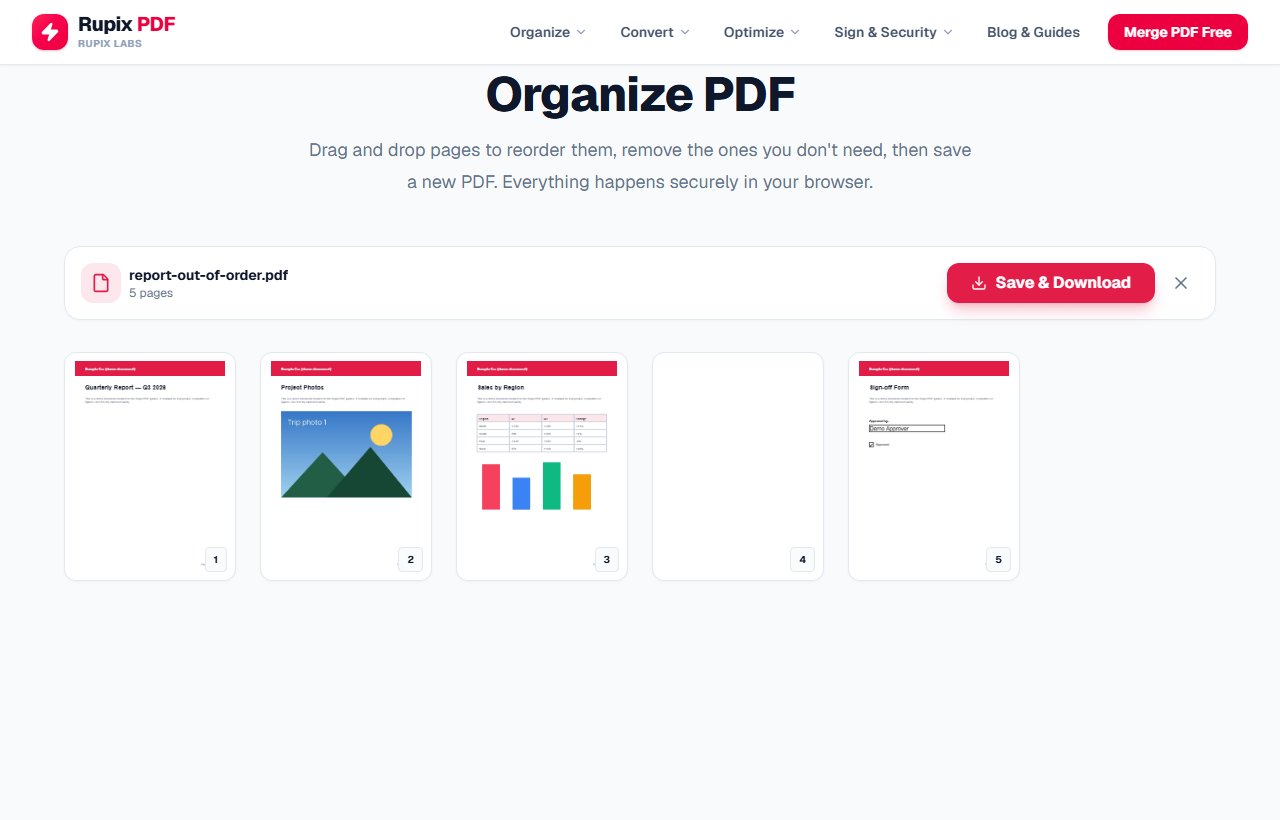
The toolbar reading report-out-of-order.pdf, 5 pages, above a grid of five thumbnails: the title page, Project Photos, Sales by Region, a blank page, and the Sign-off Form. - 3
Drag a page to its new position
Press and hold on a thumbnail, then drag it over the spot where it belongs. The other pages shift out of the way while you drag, and the page you are carrying is shown faded. Let go and the numbers update. If you prefer clicking to dragging, hover over a page and use the ‹ and › buttons to move it one place earlier or later.
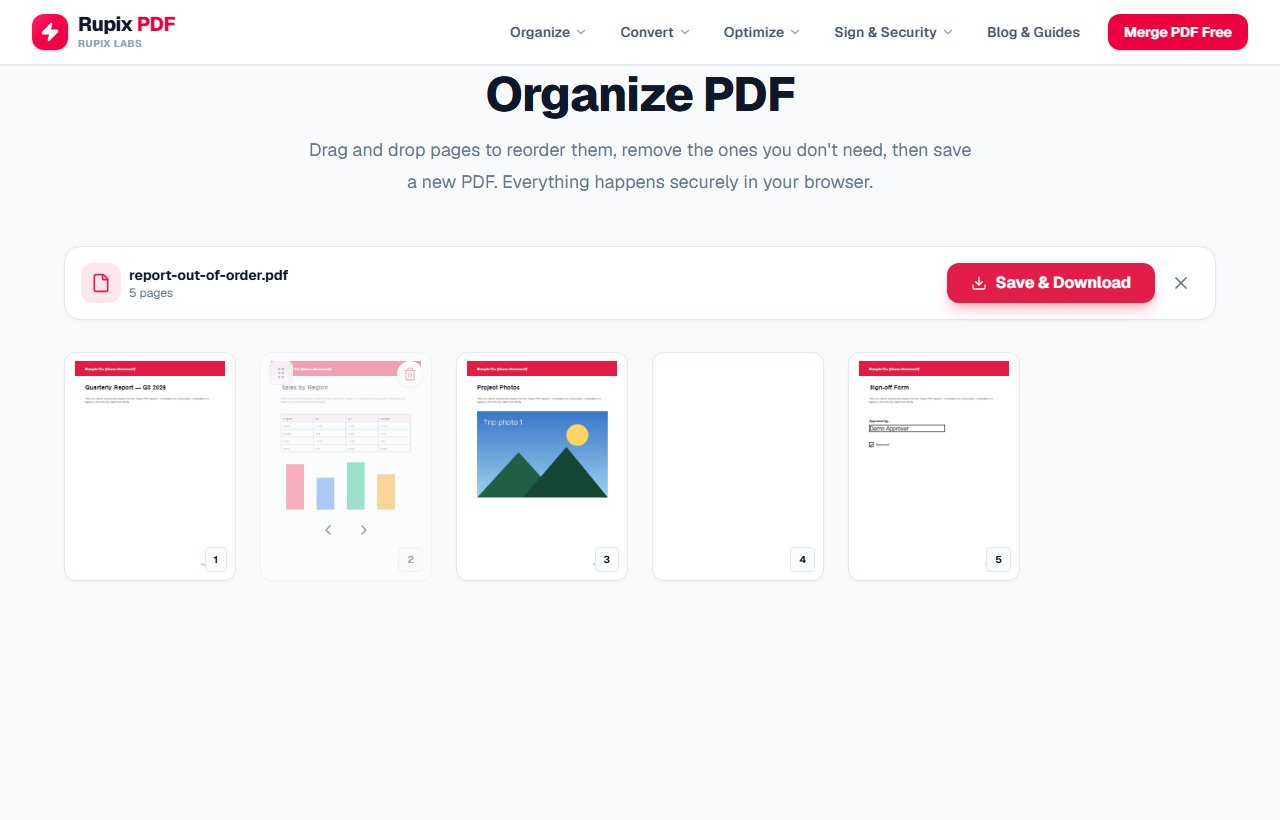
Mid-drag: the faded Sales by Region page has moved into position 2, with its grip, trash, and arrow controls visible, and Project Photos has shifted to position 3. - 4
Remove pages you don't need
Hover over a page to reveal its controls: a grip icon at the top left, a red trash button at the top right, and the two arrow buttons near the bottom. Click the trash button to take that page out of the document. There is no undo for this, so check the thumbnail before you click.
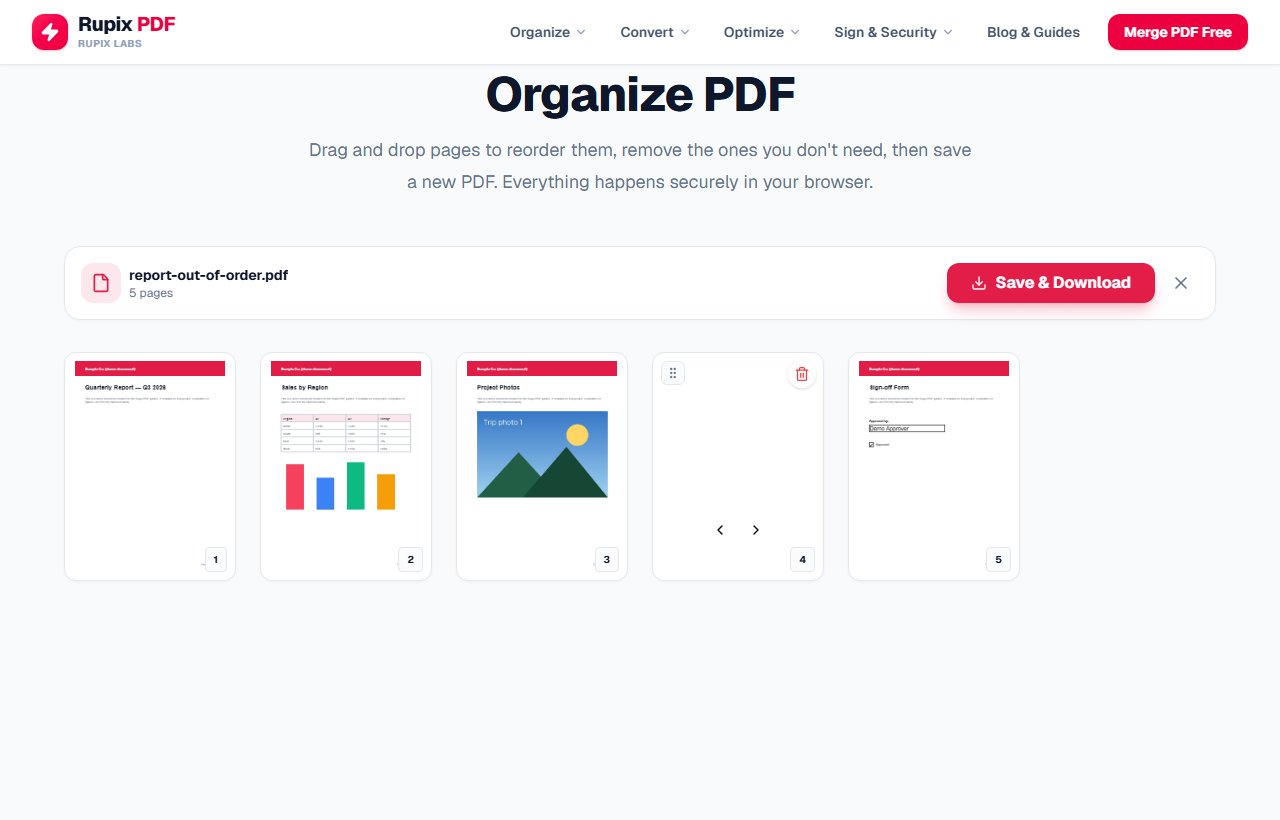
The blank page at position 4 with its hover controls showing: grip icon, red trash button, and the ‹ › arrows. - 5
Check the final order
Before saving, read the grid from left to right. The toolbar page count drops as you remove pages, and the numbers on the thumbnails show where each page will be in the new file. Ours now read title, Sales by Region, Project Photos, Sign-off Form, with 4 pages in total.
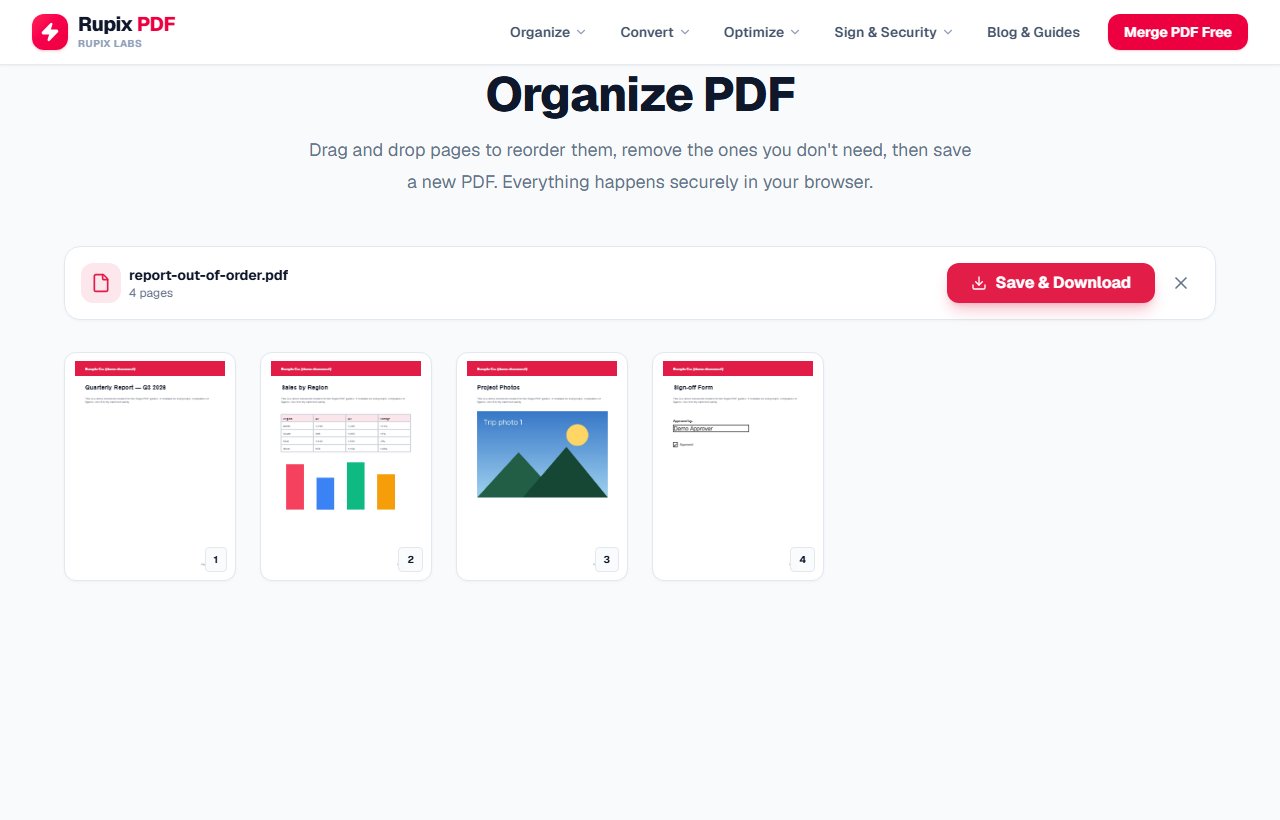
The toolbar showing 4 pages above four thumbnails in the corrected order: title page, Sales by Region, Project Photos, Sign-off Form. - 6
Save & Download
Press Save & Download in the toolbar. The new PDF downloads straight away as Rupix_Organized_ plus your file name, and a PDF Organized Successfully! screen offers Download File if you need it again and Process Another File to start over. Saving our 4-page file took well under a second, and loading the result back into the tool showed the pages in the order we had set.
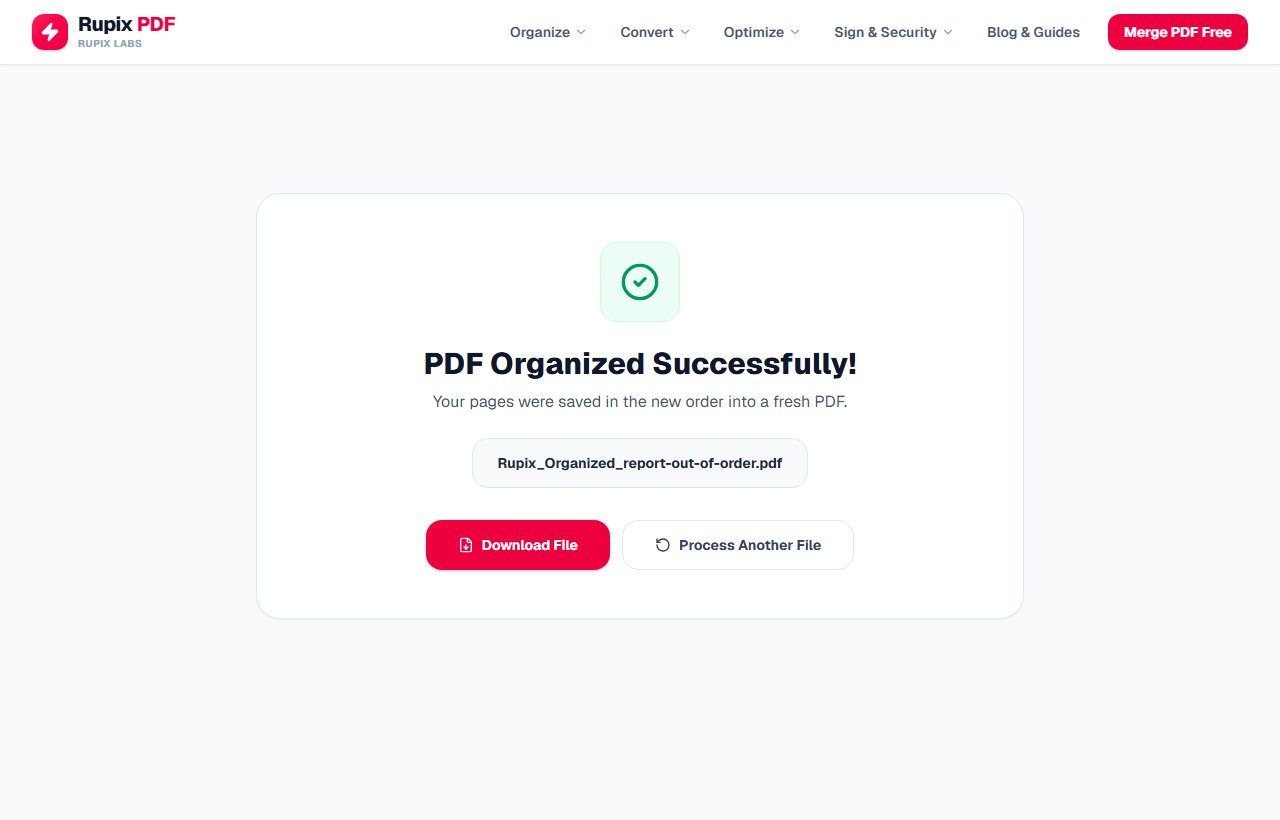
The PDF Organized Successfully! screen with the file name Rupix_Organized_report-out-of-order.pdf and the Download File and Process Another File buttons.
100% Client-Side Privacy Guarantee
Unlike other online PDF converters, Rupix operates on a zero-upload architecture. All PDF processing occurs locally in your browser memory using WebAssembly. No document bytes are ever uploaded to any server.
Engine Specifications
Supported Input
Standard PDF (.pdf)
Output Format
Reordered PDF (.pdf)
Interaction
Drag-and-drop thumbnail grid + delete
Preview Engine
PDF.js HTML5 Canvas
Rebuild Engine
pdf-lib (copyPages, Lossless)
Privacy
100% Client-Side, Zero-Upload
Why use Rupix Organize PDF?
Visual drag-and-drop grid to reorder every page in a PDF
Delete unwanted pages directly from the same organizing view
Live thumbnail preview powered by PDF.js canvas rendering
100% client-side processing with pdf-lib — zero file uploads
Other pages shift out of the way while you drag one into place
Completely free, with no watermarks
Frequently Asked Questions
How is Organize PDF different from Delete Pages or Split PDF?
Delete Pages only removes pages and Split PDF only extracts them into separate files. Organize PDF changes the order of pages by drag-and-drop and also lets you delete a page from the same view, then saves one reordered document.
Are my PDF pages uploaded to a server while I reorder them?
No. Page thumbnails are rendered in your browser with PDF.js and the new document is built with pdf-lib, so your file never leaves your device.
Can I delete a page while reordering?
Yes. Hover a page thumbnail and click the red trash button to remove that page before you save.
Does reordering pages affect quality or formatting?
No. Pages are copied into a new PDF rather than re-rendered, so fonts, vector graphics and image resolution stay the same; only the page order changes.
I removed the wrong page. How do I get it back?
There is no undo for the trash button. Click the X at the right end of the toolbar to clear the tool, then load the same file again; your original was never changed, so every page is back. If you have already saved, the downloaded copy is missing that page, but the original file on your device still has it.
Can I combine pages from two different PDFs in one go?
Not in this tool — it works on one PDF at a time. Merge the files first with Merge PDF, which puts all their pages into one document, then load that merged file here to arrange the pages from both sources in any order you like and drop the ones you do not want.
Does the number on each thumbnail show the original page number?
No. The small badge shows the page's current position, so it changes as you move pages around. That makes it easy to see where each page will land in the saved file. If you need to know where a page came from, look at its content in the thumbnail, or keep the original file open in another window.
Why does the saved file sometimes get much smaller?
The new PDF only contains the pages you kept, and each page brings along just the images and fonts it uses. Remove a page with a large photo or scan and that image is left out too, so the file shrinks. Reordering alone, without removing anything, keeps the size about the same.