Protect PDF
Encrypt your PDF with a password to keep sensitive data confidential. Processing happens entirely on your device.
Choose files
or drag and drop them here
What password protection does to a PDF, and what it doesn't
Protect PDF encrypts your document so that no PDF reader will open it until someone types the password you set. The work is done by qpdf, a long-established open-source PDF library, compiled to WebAssembly so it runs inside your browser tab. It applies AES-256, the strongest option in the PDF standard. When we inspected a file it produced, the encryption dictionary showed security handler revision 6 with the AESV3 cipher, which is the AES-256 scheme. The password you type becomes both the open password and the owner password, and the locked copy is offered as Rupix_Protected_ followed by your original file name.
People usually reach for this before a document leaves their hands. Salary slips, bank statements, medical reports, tax papers and scanned ID cards all get emailed or sent over chat apps, where a message can be forwarded, sit in a shared inbox, or be synced to a phone that someone else picks up. A password means the attachment alone is not enough to read it. The usual practice is to send the file by email and give the password another way, such as a phone call or a separate text message, so one intercepted channel does not expose both.
Be clear about what the password controls. It decides who can open the file, nothing more: the file we tested allowed printing, copying and editing to anyone who had opened it, because the tool does not set separate permission restrictions. The protection is also only as strong as the password. Anyone holding the file can try guesses offline as fast as their computer allows, so a short or obvious password is weak even with AES-256 underneath. Finally, the encryption is genuine, so a forgotten password cannot be recovered or reset by Rupix or anyone else.
How to password-protect a PDF, step by step
Choose a file, set a password, and save the encrypted copy. The file and the password stay on your device the whole time.
- 1
Open the Protect PDF tool
Go to the Protect PDF page. You will see an upload box with a Choose Files button and a note that processing happens on your device. There is no sign-up, and the page works without sending your file anywhere.
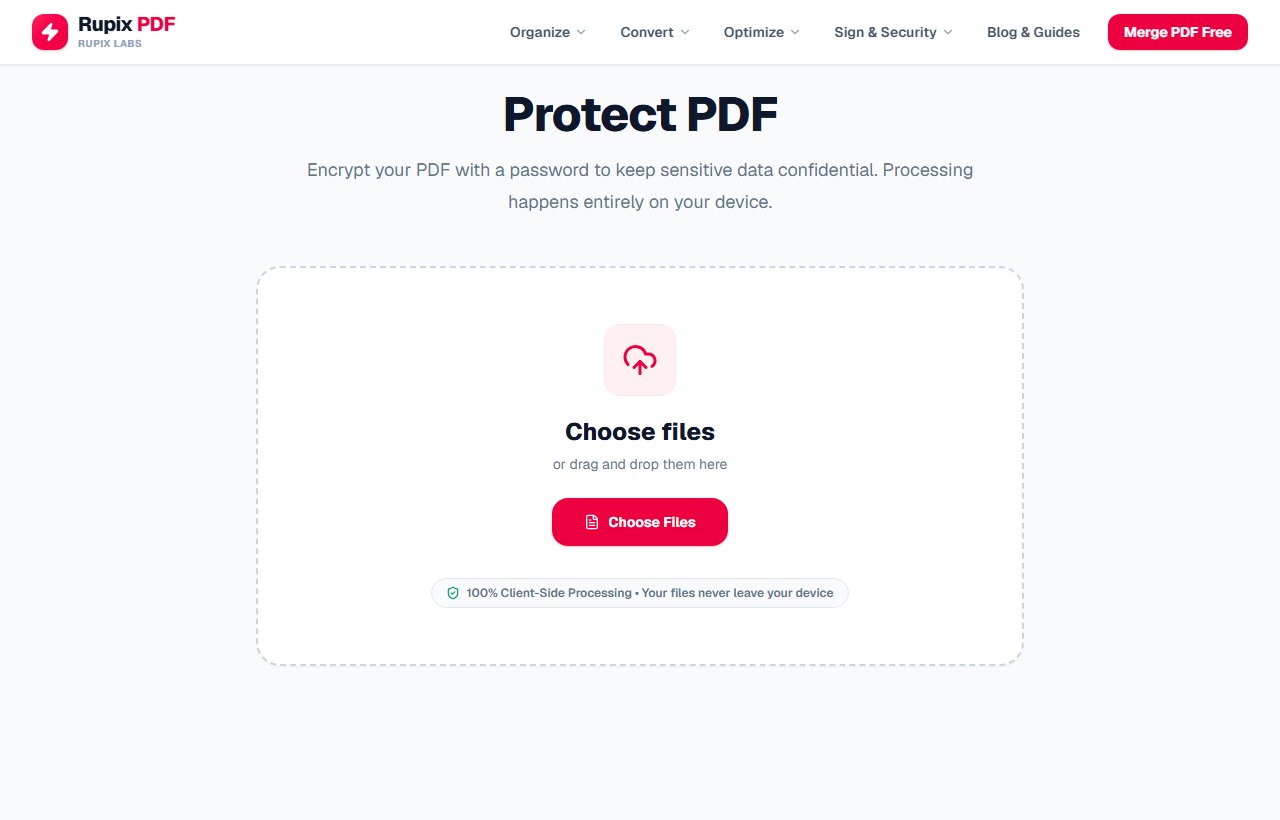
The Protect PDF page with its empty upload box and Choose Files button. - 2
Choose the PDF you want to lock
Click Choose Files or drag a PDF onto the box. The tool takes one file at a time, and it appears under Selected File with its name and size. If you picked the wrong document, the X on the right removes it.
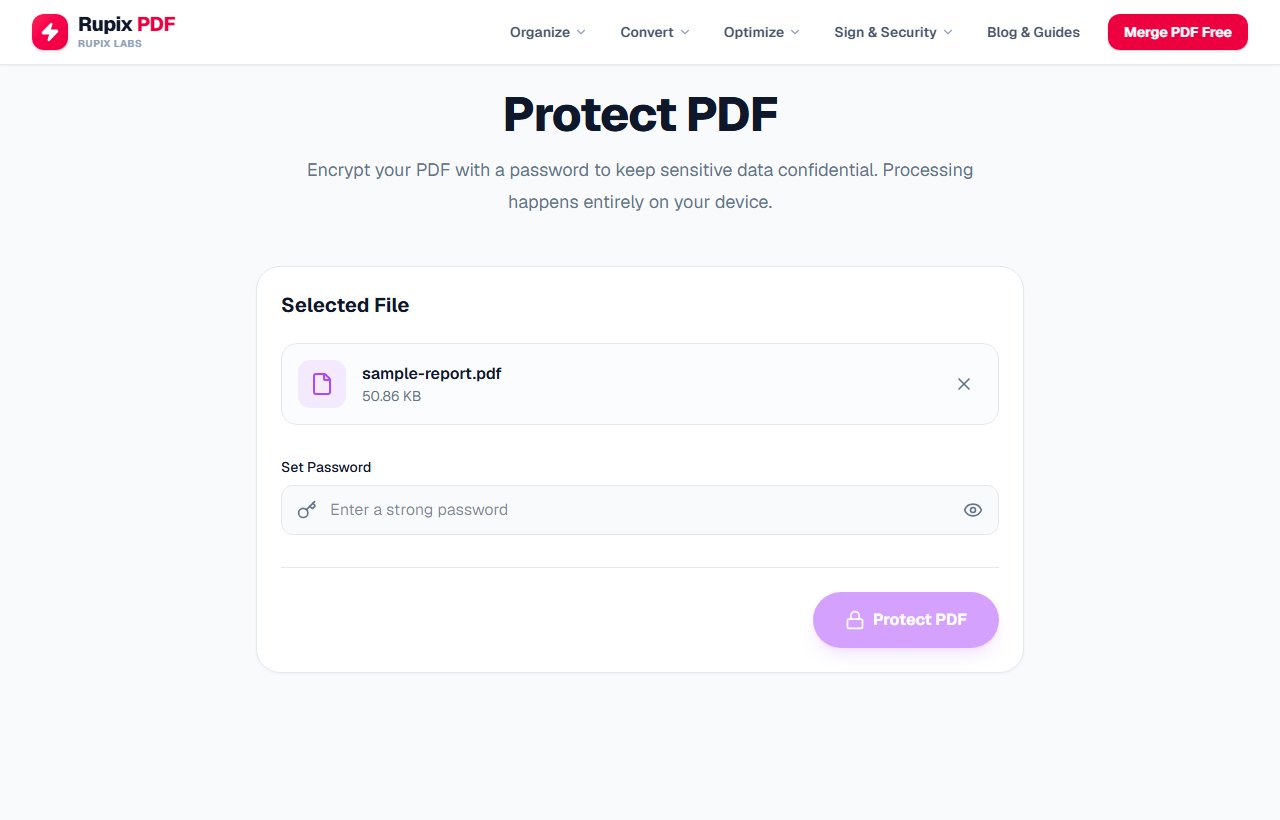
The Selected File card showing sample-report.pdf (50.86 KB) above an empty Set Password field. - 3
Type a password
Enter your password in the Set Password field. If it is shorter than six characters, an amber line reads 'Use at least 6 characters for a strong password.' This is advice only and the Protect PDF button still works, but a longer password is much harder to guess.
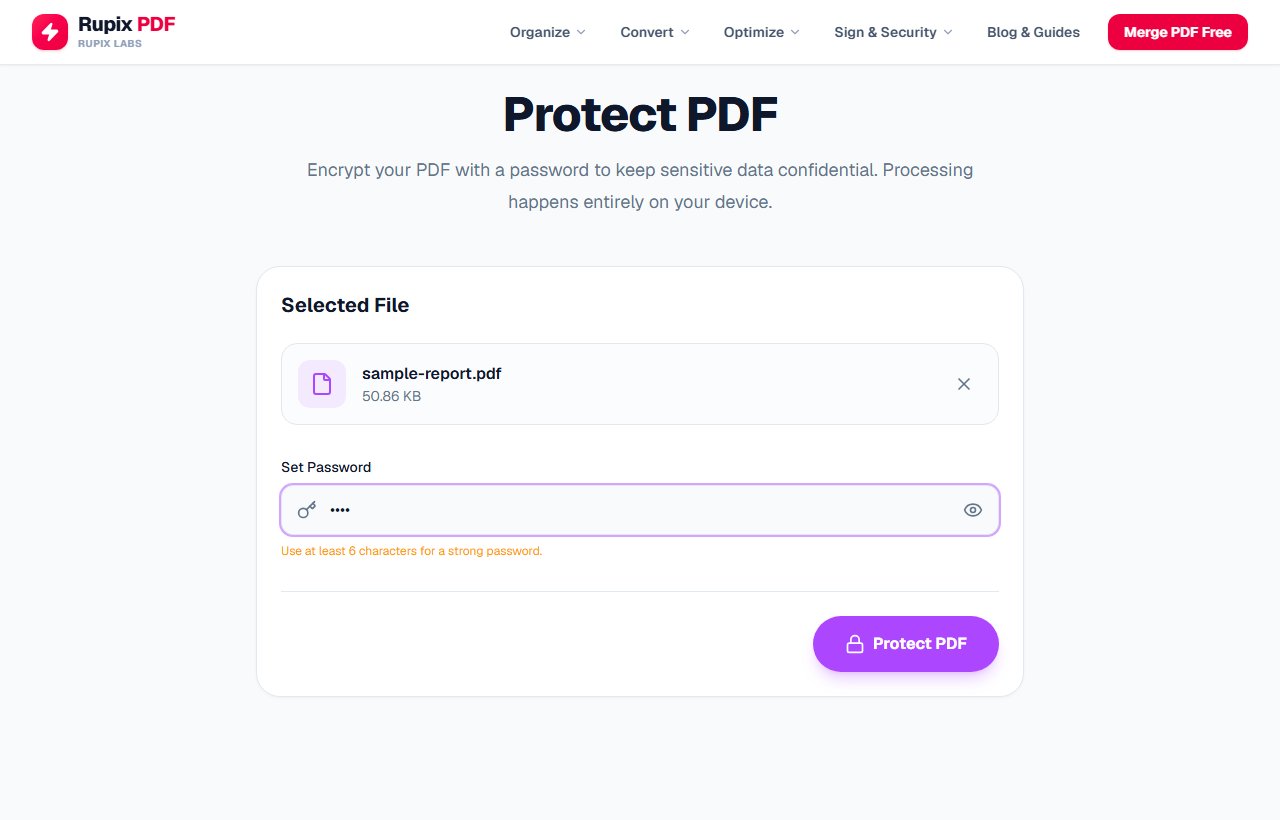
A four-character password typed into the field, with the amber six-character warning shown below it. - 4
Check what you typed
There is no second 'confirm password' box, so click the eye icon at the right end of the field to show the password in plain text and make sure it is exactly what you intended. A typo here would lock you out of your own file. Click the icon again to hide it.
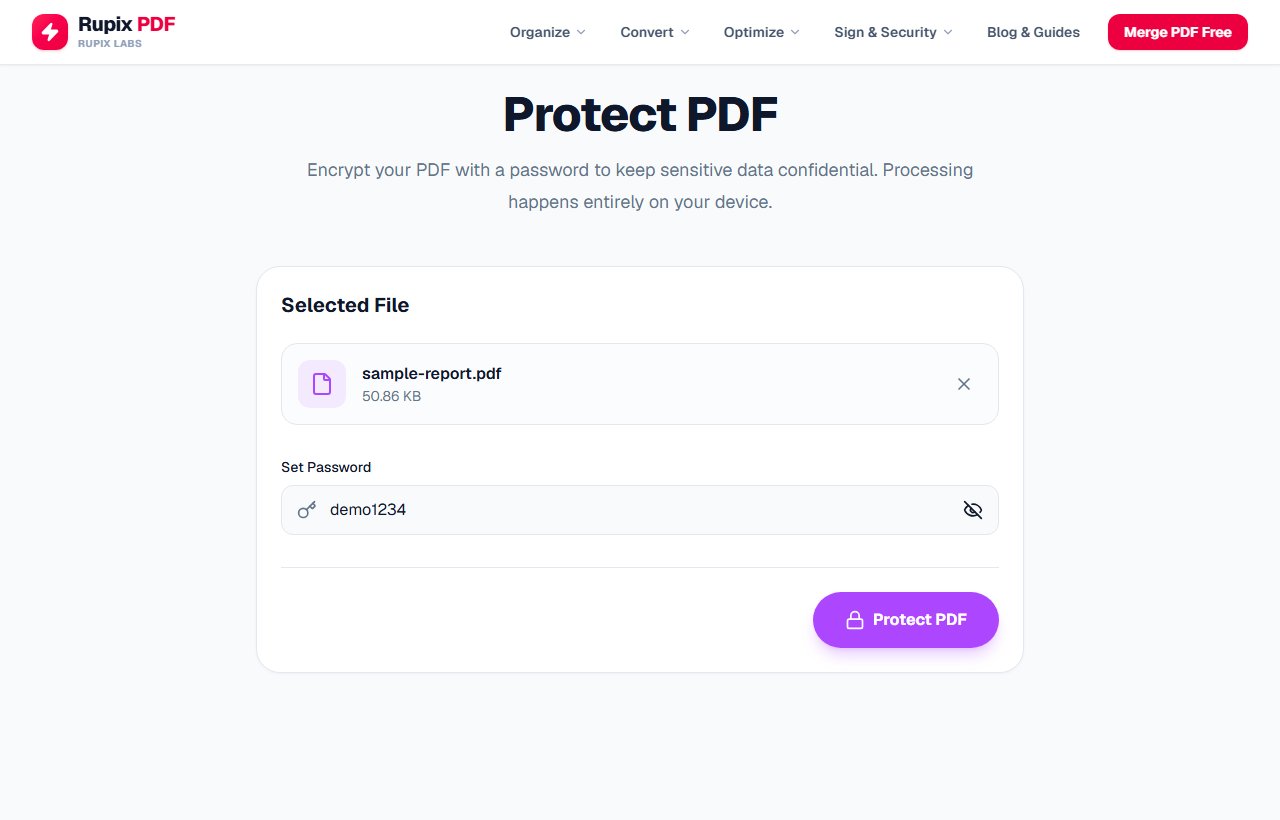
The password demo1234 shown in plain text after clicking the eye icon, with the Protect PDF button enabled. - 5
Encrypt and save the file
Click Protect PDF, or press Enter in the password field. The button briefly reads Encrypting..., then a PDF Protected! screen appears. This tool does not start the download on its own: click Download File to save Rupix_Protected_ plus your file name. Process Another File clears everything for the next document.
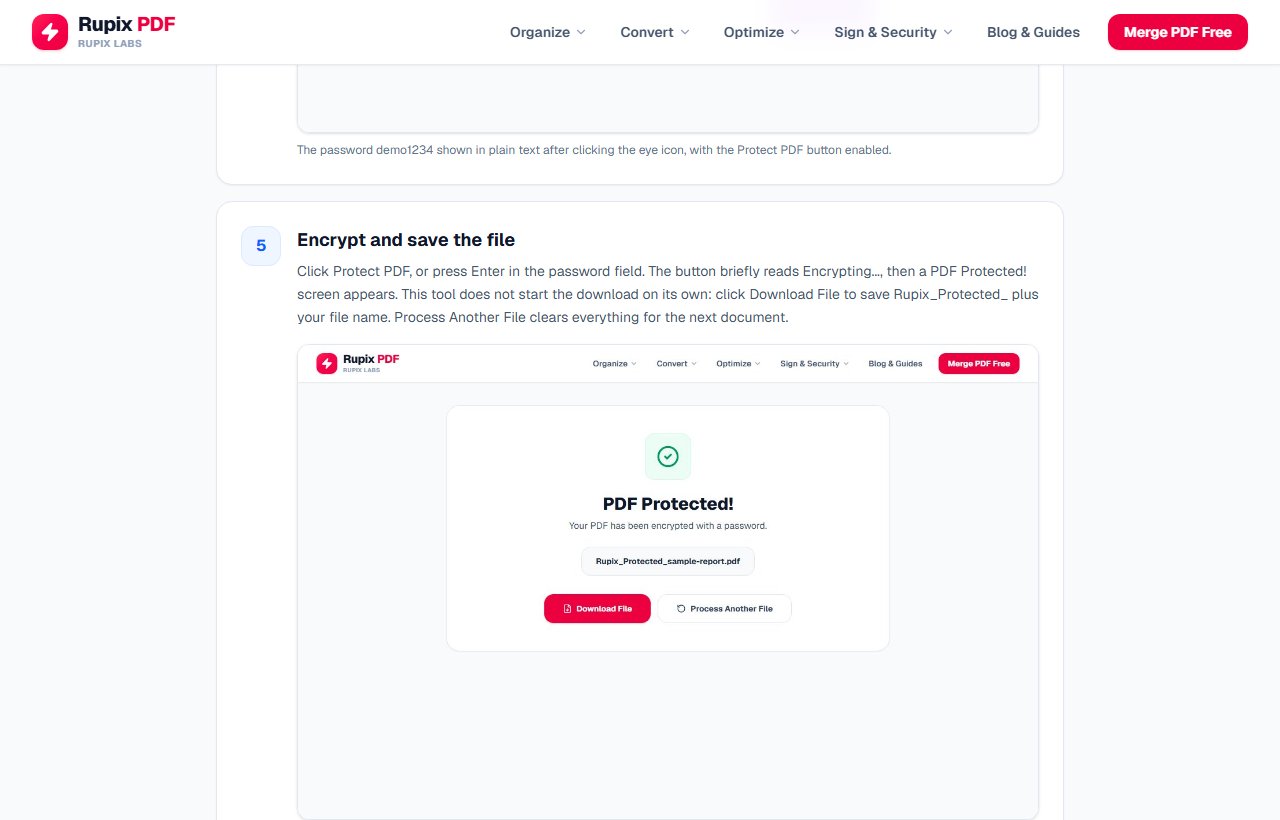
The PDF Protected! screen showing Rupix_Protected_sample-report.pdf with Download File and Process Another File buttons. - 6
Test the locked file before you send it
Open the downloaded copy in any PDF reader. It should ask for a password before showing anything. We checked our output with a separate PDF program: it refused to open the file with no password or a wrong one, and showed the full text with the right one. Keep the unprotected original somewhere safe too, in case the password is ever lost.
100% Client-Side Privacy Guarantee
Unlike other online PDF converters, Rupix operates on a zero-upload architecture. All PDF processing occurs locally in your browser memory using WebAssembly. No document bytes are ever uploaded to any server.
Engine Specifications
Supported Input
Unencrypted standard PDF (.pdf)
Encryption Engine
qpdf (WebAssembly build)
Encryption Standard
AES-256, PDF Standard Security Handler
Output
Password-protected PDF (.pdf)
Privacy
100% Local In-Browser Execution
File Limit
Up to 100 MB per file
Why use Rupix Protect PDF?
Real AES-256 password encryption using the qpdf engine compiled to WebAssembly
Sets both a user (open) password and an owner password on the PDF
100% private — your file and password never leave your browser, no server involved
Implements the genuine PDF Standard Security Handler, not a cosmetic lock
Works entirely offline once the page has loaded
Completely free, no watermarks, files up to 100 MB
Frequently Asked Questions
Is this real password encryption, or does it just look protected?
It's real. Rupix Protect PDF uses qpdf — a well-established PDF library — compiled to WebAssembly, which implements the actual PDF Standard Security Handler (AES-256). The output file genuinely cannot be opened by any PDF reader without the password, unlike tools that merely claim to encrypt.
Is my file or password uploaded to a server?
No. Encryption runs entirely inside your browser using WebAssembly. Your PDF and the password you set never leave your device.
What encryption strength is used?
AES-256, the strongest encryption qpdf supports and the current PDF standard for strong protection.
Can I set a separate owner password to restrict printing or editing?
The tool currently sets one password as both the user (open) and owner password. Support for separate owner-only permission passwords is on the roadmap.
What if I forget the password I set?
There is no recovery. Because the encryption is genuine, Rupix cannot unlock or reset a forgotten password — keep your password somewhere safe.
Once someone opens the protected file, can they print or copy from it?
Yes. The password only controls opening the document. The tool does not set restrictions on printing, copying or editing, and the permission flags in the file we tested allowed all of them. Anyone you give the password to has full use of the document, so share it only with people who should have that.
Can I add a password to a PDF that is already protected?
No. When we loaded a file that this tool had already encrypted, it stopped with the message 'Something went wrong while encrypting this PDF. Please make sure it's a valid, unencrypted PDF and try again.' To change the password, remove the old one first with Unlock PDF, then protect the result. Unlock PDF turns pages into images, so the text in that final copy will not be selectable.
Does encryption change the file's size or content?
Barely. Our four-page test file went from 52,076 bytes to 52,658 bytes, an increase of under 600 bytes. Pages are not re-rendered or compressed, so once the right password is entered, the text, images and layout are the same as in the original, and the text stays selectable and searchable.
How long should my password be?
The tool warns below six characters but will accept shorter ones. Because someone who has the file can try passwords offline without limit, aim for something long and not guessable, such as three or four unrelated words together. Avoid dates of birth, phone numbers and names, since those are the first things a guesser tries.