Unlock PDF
Remove PDF password security. Enter the known password to generate an unlocked copy. The copy is re-rendered from the pages, and everything happens on your device.
100% Client-Side Privacy
Files never leave your browser
Local Decryption
Processed in memory
Zero Server Uploads
No data transmitted
Choose files
or drag and drop them here
How Unlock PDF removes a password you already know
Unlock PDF makes a copy of a password-protected PDF that opens without asking for the password. It does not break or guess passwords: you type the one you already have, and pdf.js, the PDF engine used by Firefox, uses it to open the file inside your browser. Each page is then drawn at twice its normal resolution, saved as a JPEG image at 90 percent quality, and placed on a page of the same size in a brand-new PDF. That new file has no encryption and downloads automatically as Rupix_Unlocked_ followed by your file name.
The usual reason is a document that is locked for good reasons but gets in the way afterwards. Banks, card companies and payroll systems often email statements protected with a password made from personal details. That is fine for reading, but awkward when you need to upload the statement to a loan or visa portal that rejects encrypted files, merge it with other documents, or print it at a shop without handing over the password. An unlocked copy solves those problems. Only unlock files you own or have permission to use, and keep the unlocked copy as carefully as you would the original.
Because the pages are re-drawn as pictures, the unlocked copy is not identical to the original. Text can no longer be selected, searched or copied, and links, bookmarks and form fields do not carry over. The file also gets bigger: our four-page, 51 KB test file came out at 263,557 bytes, about five times larger, with each A4 page stored as a 1190 by 1684 pixel image. On screen and on paper the pages look the same as before, and the page sizes are kept exactly.
How to unlock a password-protected PDF, step by step
Load the locked file, enter its password, and the unlocked copy downloads on its own. Nothing is uploaded.
- 1
Open the Unlock PDF tool
Go to the Unlock PDF page. The line under the heading already warns that the copy is re-rendered from the pages. Click Choose Files or drag your locked PDF onto the box.
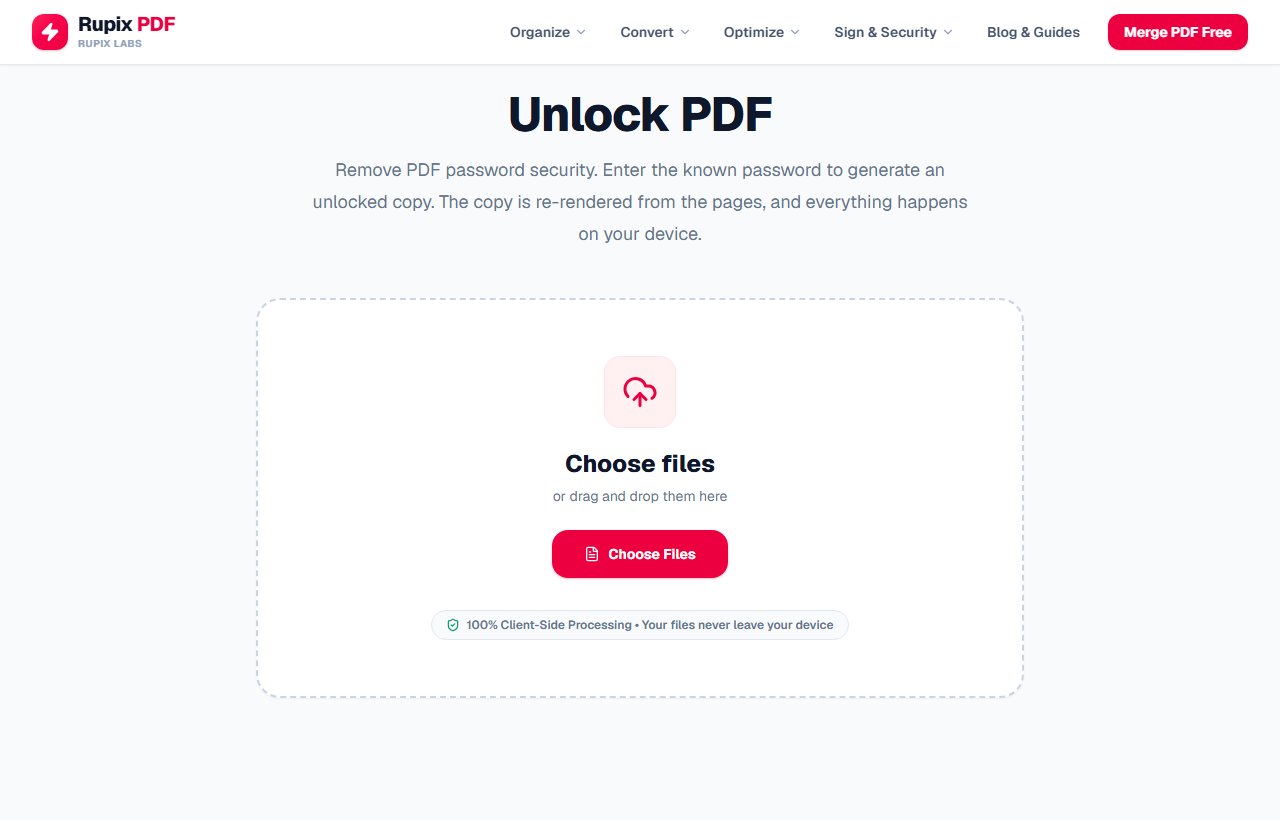
The Unlock PDF page with its empty upload box and Choose Files button. - 2
Check the file and read the notes
Your document appears under Encrypted File with its name and size. If the file turns out to have no protection at all, the tool says so here instead of showing a password field, and there is nothing further to do. Below the password field are two notes: a hint to leave the field empty if the PDF only has an owner password that restricts printing or editing, and an amber reminder that the output text will be a flattened image.
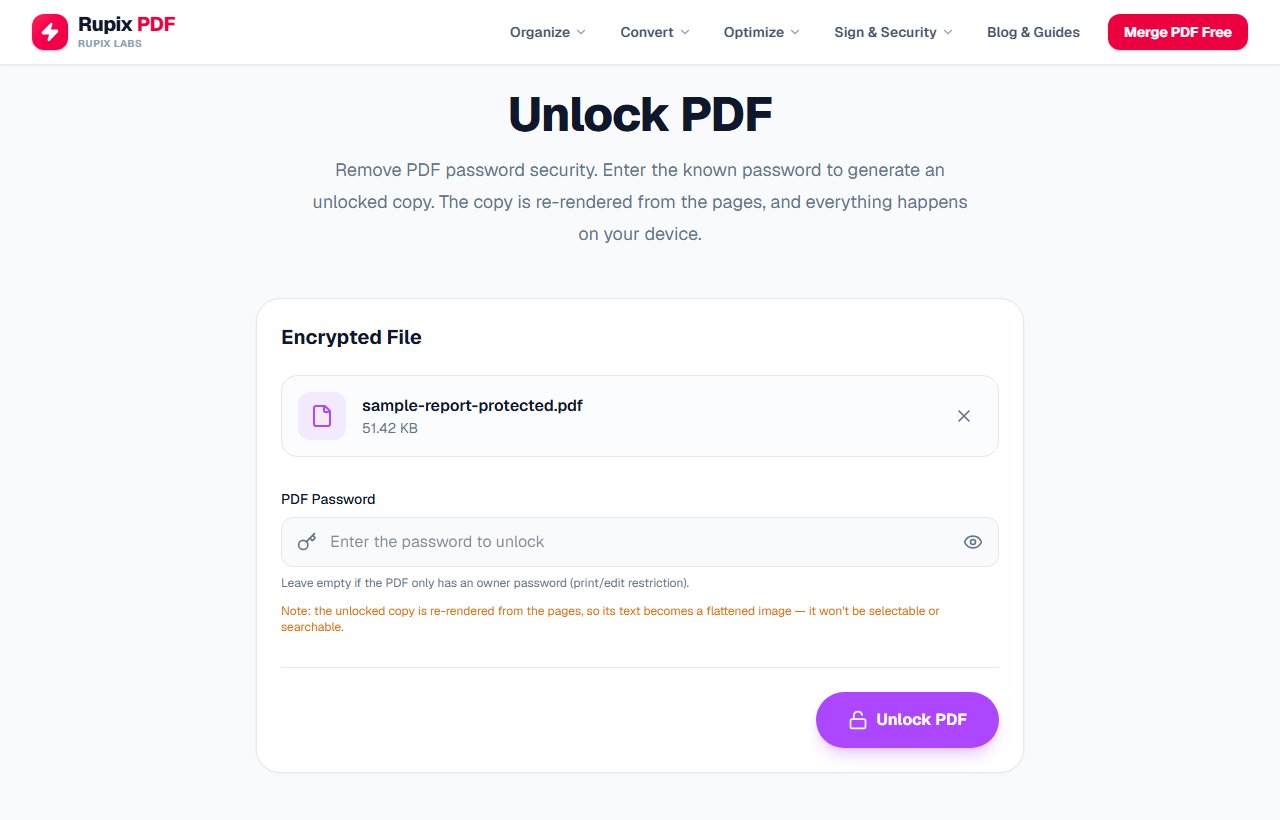
The Encrypted File card for sample-report-protected.pdf, the empty PDF Password field, and the two notes beneath it. - 3
Type the password
Enter the password you use to open the file. Click the eye icon to show what you typed if you want to double-check it, which helps with passwords that mix capitals and numbers.
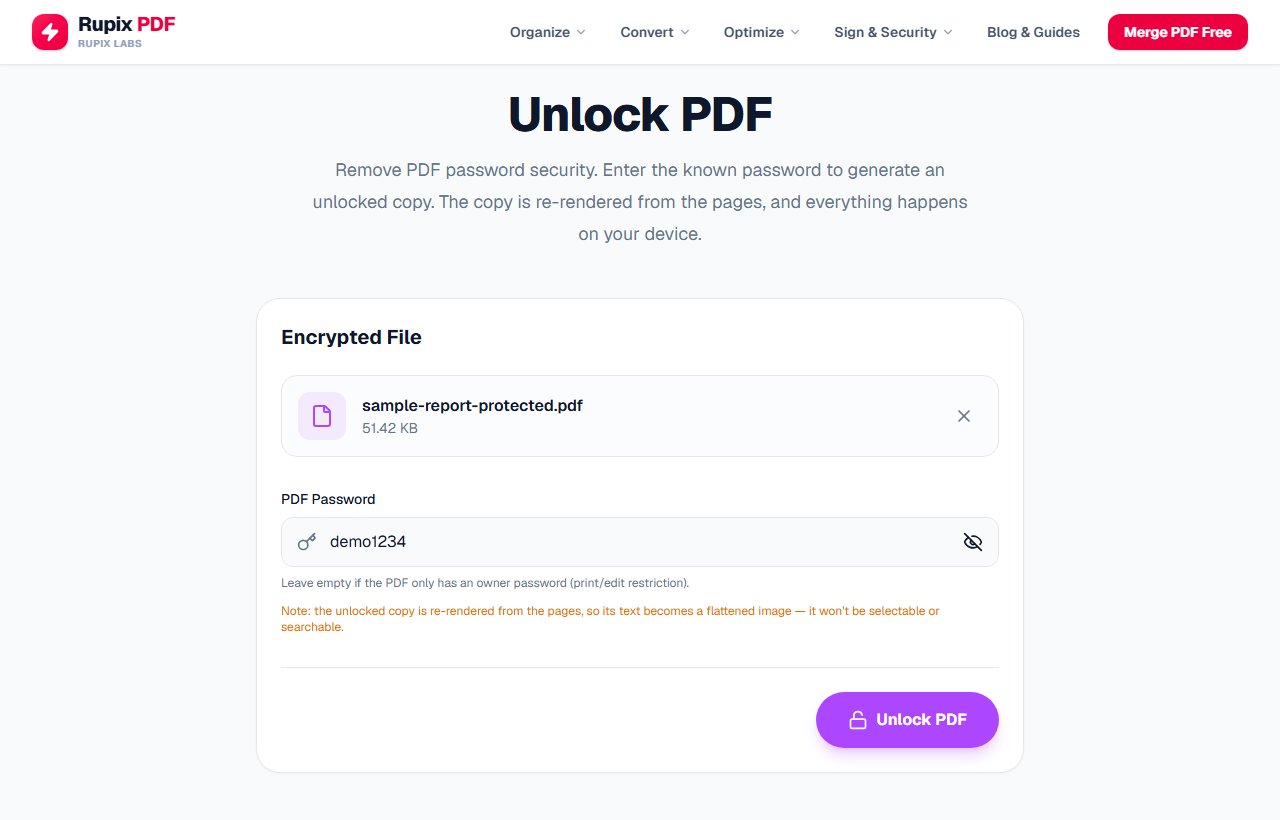
The password demo1234 shown in plain text in the PDF Password field, with the Unlock PDF button ready. - 4
Fix a wrong password
If the password does not match, a browser message says 'Incorrect or missing password. Please enter the correct password and try again.' Close it and you are back on the same screen with the file still loaded, so you can simply retype the password.
- 5
Click Unlock PDF
Press Unlock PDF or hit Enter. The button reads Unlocking... while each page is redrawn, which took about half a second for our four-page test file on a desktop computer. The unlocked copy downloads automatically and a PDF Unlocked! screen appears; use Download File if you need to save it again.
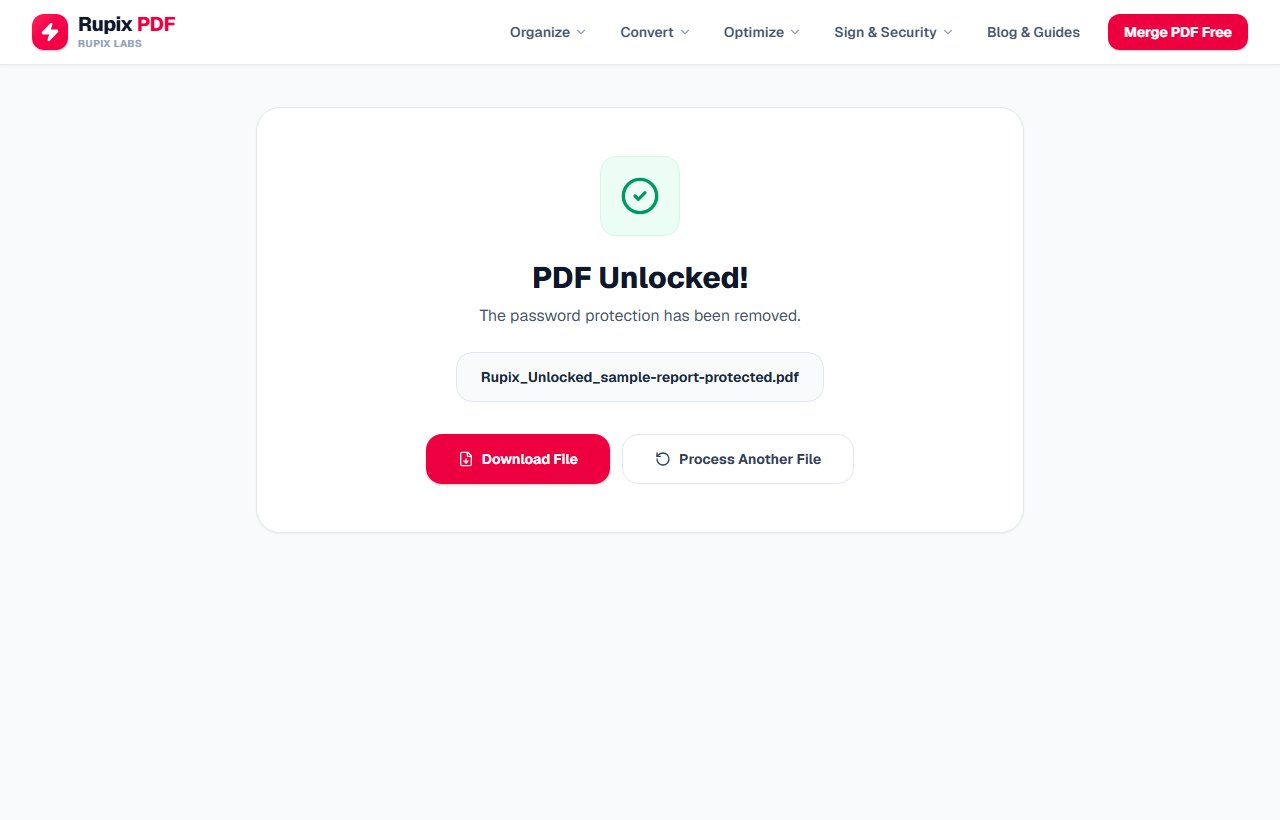
The PDF Unlocked! screen showing Rupix_Unlocked_sample-report-protected.pdf with Download File and Process Another File buttons. - 6
Check the unlocked copy
Open the new file and confirm it no longer asks for a password. Expect the pages to look the same but the text to be unselectable, and the file to be noticeably larger than the original. If you later need the document protected again, run the copy through Protect PDF with a new password.
100% Client-Side Privacy Guarantee
Unlike other online PDF converters, Rupix operates on a zero-upload architecture. All PDF processing occurs locally in your browser memory using WebAssembly. No document bytes are ever uploaded to any server.
Engine Specifications
Supported Input
Password-protected PDF (.pdf)
Engine
PDF.js decryption + canvas re-render
Output
Unprotected PDF (image-based pages)
Privacy
100% Local In-Browser Execution
File Limit
Up to 100 MB per file
Why use Rupix Unlock PDF?
Remove owner and user password protection from a PDF you know the password to
100% private — the password and file never leave your browser
Works entirely offline using PDF.js decryption and page re-rendering
No watermarks, files up to 100 MB each
Completely free with no account required
Frequently Asked Questions
Do I need to know the PDF's password?
Yes. This tool removes protection from a PDF you already know the password to — it does not crack, guess, or recover unknown passwords.
Will the unlocked PDF's text still be selectable and searchable?
No. Because the browser can only safely re-render an encrypted PDF, not directly decrypt and rewrite it, the unlocked copy is generated by rendering each page as a high-resolution image inside a new PDF. Text will not be selectable or searchable in the output.
Is my file uploaded anywhere?
No. The password and file are processed entirely inside your browser using PDF.js — nothing is sent to a server.
Why is the unlocked file so much bigger than the original?
Every page is stored as a full-page JPEG image instead of compact text and vector drawing instructions. Our 51 KB, four-page test file grew to 263,557 bytes after unlocking. Text-heavy documents grow the most. Compress PDF won't help much here: when we ran our unlocked copy through it on the Recommended setting, it reported the file was already well optimized and kept it as it was.
Will links, bookmarks and fillable form fields still work?
No. The new PDF is built only from images of each page, so clickable links, the bookmark sidebar and form fields are not carried over. What you see on each page is preserved, including any text that was already typed into a form, but it becomes part of the picture.
What happens if I upload a PDF that isn't password-protected?
The tool checks as soon as you choose the file. When we loaded an ordinary PDF with no protection, the password box was replaced by a note saying This PDF isn't password-protected, with a link to choose a different file, and nothing was converted or downloaded. Files that only restrict printing or editing still count as protected, so the tool does go ahead with those.
Can I make the text searchable again after unlocking?
Not with this tool. That would need OCR (optical character recognition), which reads the text back out of the page images, and Rupix PDF does not currently offer it. If you need selectable text, a desktop PDF reader that can open the file with your password and save a copy without security will usually keep the original text layer.